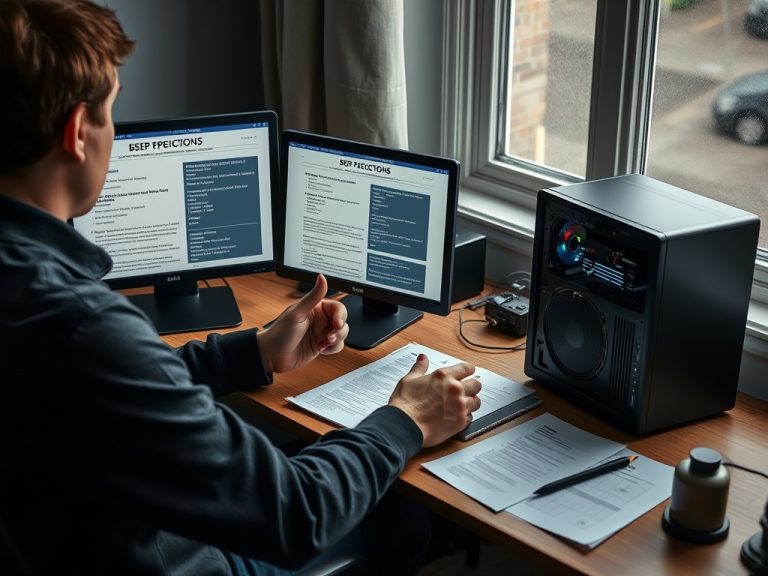
The most expensive desktop mistakes usually come from buying an unbalanced system, ignoring upgrade limits, or choosing parts that do not match your actual workload. A good desktop computer buying guide should help you avoid waste, not just push you toward higher specs.
Cost-saving checks before you buy
- Match the desktop to the work you actually do, not to the biggest sale label.
- Check upgrade paths for RAM, storage, graphics, and ports before purchase.
- Budget for the monitor, keyboard, backup drive, speakers, webcam, and surge protection.
- Avoid old storage, weak power supplies, and cases with poor airflow.
- Compare total ownership cost, not only the tower price.
Mistake 1: Buying one impressive spec and ignoring balance
A desktop with a strong processor but too little RAM can still feel slow. A tower with lots of storage but no SSD can feel outdated on day one. A gaming-style graphics card does not help much if your main tasks are documents, browser work, online meetings, and basic photo organization.
This mistake happens because product pages highlight simple numbers. New buyers see "large drive," "high speed," or "many cores" and assume the system is strong overall. Instead, compare the whole configuration. The earlier guide to CPU, RAM, and storage explains why each part solves a different problem.
Microsoft’s computer buying guidance encourages matching specs to use case, which is the right starting point for desktop buyers as well as laptop buyers Microsoft’s device buying guidance. A family homework computer, a bookkeeping workstation, and a video editing desktop do not need the same configuration.
Mistake 2: Forgetting the total setup cost
A desktop price often excludes the things that make the computer usable. You may need a monitor, monitor cable, keyboard, mouse, speakers or headset, webcam, microphone, external backup drive, desk space, and an uninterruptible power supply if power stability is a concern.
A cheap tower can become expensive when you add missing basics. A slightly more expensive all-in-one or mini PC may be better for a small desk if it reduces cable clutter and includes the screen. On the other hand, a traditional tower may be better if you want future upgrades and easy repairs.
Do not compare desktops and laptops only by sticker price. A laptop includes screen, battery, webcam, keyboard, and portability. A desktop may offer better cooling, repairability, and long-term value, but those advantages matter only if the setup fits your space.
Mistake 3: Choosing the wrong form factor
Desktops come in several shapes: full tower, mid tower, small-form-factor, mini PC, and all-in-one. Each has trade-offs. Large towers are easier to upgrade and cool, but they take space. Mini PCs are tidy and quiet, but may limit internal upgrades. All-in-ones reduce clutter, but screen and computer are tied together.
| Desktop type | Strength | Hidden cost risk | Best fit |
|---|---|---|---|
| Full or mid tower | Upgrade room, airflow, repair access | Larger desk area and more cables | Long-term home office, gaming, creative work |
| Small-form-factor PC | Compact, more flexible than a laptop | Limited parts compatibility | Office work and tight spaces |
| Mini PC | Very small footprint | Fewer internal upgrades | Basic browsing, media, light productivity |
| All-in-one | Simple setup, fewer cables | Harder screen/computer replacement decisions | Shared family spaces and reception desks |
Mistake 4: Underestimating storage quality
A desktop with an SSD usually feels much faster than one with only a mechanical hard drive. Storage affects startup, app launches, file search, and updates. If the computer uses a hard drive as the main system drive, it may feel slow even if the CPU is acceptable.

Capacity still matters. Photos, videos, design files, and game libraries can consume space quickly. But speed should come first for the operating system and main apps. A common balanced setup is a fast SSD for the system and active files, plus a larger secondary drive or external drive for archives.
Also check how easy it is to add storage later. Some small desktops have only one internal slot. Some towers have multiple bays and connectors. If future upgrades are part of your plan, do not buy a case that blocks them.
Mistake 5: Ignoring ports, networking, and monitor support
A desktop may look strong on paper and still be annoying every day if it lacks the right ports. Check USB type, number of ports, audio jacks, Ethernet, Wi-Fi, Bluetooth, memory card needs, and display outputs. If you want two monitors, confirm that the desktop can support them at the resolution and refresh rate you need.
Networking matters too. A wired Ethernet connection is often more stable for work calls, large downloads, and backups. If the desk is far from the router, review your home network plan before blaming the computer. The article on mesh systems and Wi-Fi checks can help separate desktop problems from coverage problems.
Mistake 6: Treating upgrade claims too casually
"Upgradeable" can mean many things. A desktop may technically support more RAM but use all available slots. It may support a graphics card but have a weak power supply. It may have space for another drive but no included cable or mounting hardware. It may use proprietary parts that make replacements harder.
Before buying, look for the motherboard type, RAM slots, storage connectors, power supply wattage and connector type, case clearance, and warranty terms. You do not need to become a technician, but you should know whether the system is standard enough for common repairs.
Mistake 7: Forgetting security and maintenance
A desktop is not a one-time purchase. You still need updates, backups, safe browsing habits, and account protection. The FTC’s computer security tips emphasize basic habits such as updates and protective practices for safer computer use FTC computer security tips. If several family members use the desktop, set up separate accounts and avoid giving everyone administrator access.
Maintenance also includes physical care. Dust buildup can raise temperatures and fan noise. Poor cable routing can block airflow. A desktop pushed into a closed cabinet may overheat. Place the tower where it can breathe.
A smarter desktop-buying filter
Before you buy, answer these questions in writing: What will this desktop do every week? What software must it run? How many monitors will it use? How much local storage do you need? Which parts can be upgraded later? What accessories are missing from the price?
A desktop can be the best value in personal computing when it is bought for the right reasons. Use the spec sheet as evidence, not as a sales pitch, and choose the system that fits your space, tasks, and upgrade expectations.