
For new users, CPU, RAM, and storage matter in different ways: the CPU affects how quickly tasks are processed, RAM affects how many things can stay open smoothly, and storage affects how much you can keep and how quickly files and apps load. The best upgrade is the one that removes your actual bottleneck, not the one with the biggest number on the box.
Fast hardware answer for first-time buyers
- Choose a stronger CPU when the computer feels slow during demanding tasks such as video calls, creative apps, coding, or large browser sessions.
- Choose more RAM when apps freeze, browser tabs reload, or multitasking feels cramped.
- Choose faster or larger storage when the computer takes too long to start, apps open slowly, or you keep running out of space.
- For most new users, a balanced system beats one excellent part paired with weak supporting parts.
The simple role of each part
Think of a computer as a work desk. The CPU is the person doing the work, RAM is the clear desk space where current work sits, and storage is the filing cabinet. A fast worker still gets slowed down by a tiny desk. A huge filing cabinet does not help much if the worker is slow. A large desk does not matter if every file must be pulled from a slow cabinet.
That is why "CPU vs RAM vs storage" is not a winner-takes-all choice. It is a matching problem. Microsoft’s Windows support guidance recommends monitoring CPU, memory, and disk usage when a PC slows down because those readings help identify which resource is under pressure in real use, not just on a spec sheet Microsoft’s PC performance guidance.
This also connects to basic digital literacy. If you are still learning how computer parts fit together, the guide to desktop buying mistakes is useful because many costly purchases happen when buyers chase one attractive number and miss the rest of the system.
CPU: best for tasks that need processing power
The CPU, or central processing unit, runs instructions. It matters most when the computer has to calculate, compress, render, compile, or coordinate many active tasks. A better CPU can help with photo editing, large spreadsheets, programming tools, video conferencing while screen sharing, and games that rely heavily on simulation or background calculations.
For beginners, the risk is overbuying. Many everyday tasks are not CPU-heavy for long. Email, documents, streaming, school portals, and basic web browsing usually need a modern, competent processor more than a top-tier one. A stronger CPU may last longer, but it may not be the best value if the same money would fix too little RAM or a slow hard drive.
Look beyond brand names. Compare processor generation, core count, power class, and the type of work you actually do. A thin laptop chip and a desktop chip may share a familiar marketing label but behave differently because of heat and power limits.
RAM: best for keeping work open without friction
RAM is temporary working memory. It does not store your files permanently. Instead, it helps the computer hold active apps, browser tabs, documents, and system processes while you work. When RAM runs short, the system may borrow storage as temporary memory, which is much slower. That is when tabs reload, apps hesitate, and switching between programs feels sticky.
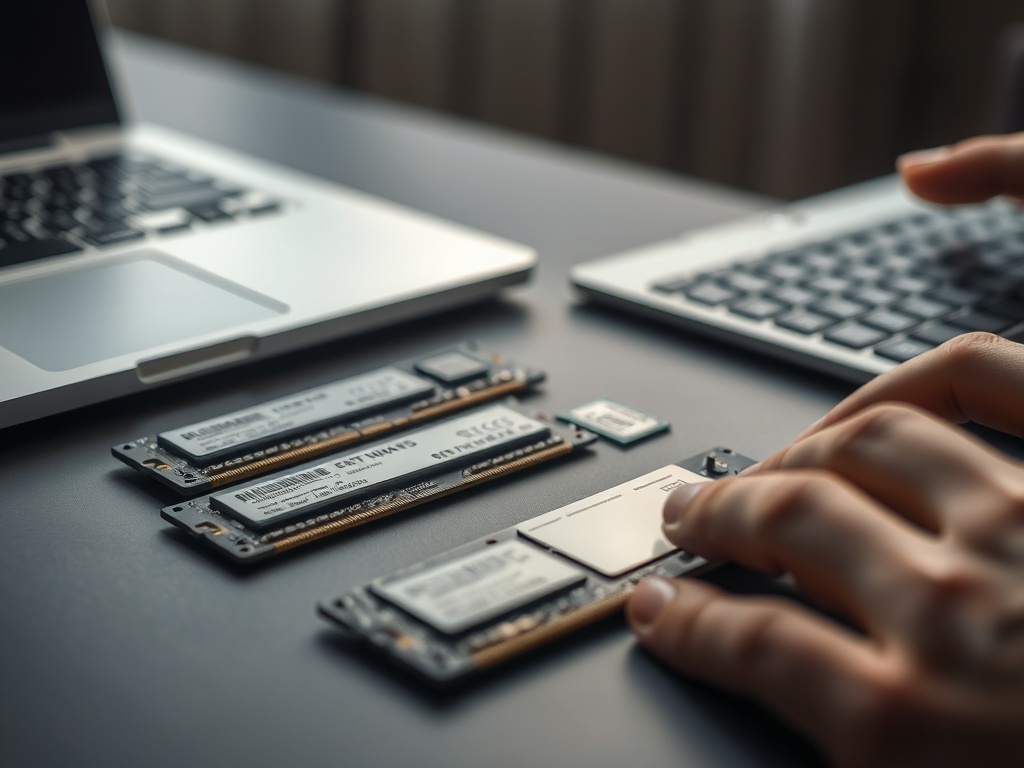
For a light user, enough RAM feels invisible. For a heavy multitasker, too little RAM is obvious. Students who keep research tabs open, office users who run messaging apps and spreadsheets together, and home users who keep many browser windows open often benefit from more RAM before they benefit from a premium CPU. More is not automatically better once you have enough, but if you regularly hit the limit, a RAM increase can make a modest computer feel far less frustrating.
Storage: best for speed, space, and daily convenience
Storage is where your files, programs, photos, videos, and operating system live. It affects capacity, but also responsiveness. A solid-state drive, usually called an SSD, is much faster than an older mechanical hard drive for starting the computer, launching apps, searching files, and copying data.
Storage choices have two separate questions: "How much do I need?" and "How fast should it be?" A smaller fast SSD is usually better for everyday use than a larger slow drive, as long as you have enough room for your files. If you keep large video libraries, design files, or game installs, capacity becomes more important. If most of your documents live in cloud storage, speed and reliability may matter more than huge local capacity.
People comparing a desktop and laptop can use the related guide on CPU, RAM, and storage basics alongside a practical desktop checklist. Desktops often make storage upgrades easier, while many slim laptops have limited upgrade paths.
Quick comparison for new users
| Part | What it mainly improves | Common sign it is the bottleneck | Best beginner priority |
|---|---|---|---|
| CPU | Processing speed for active tasks | Heavy apps lag even with few programs open | Moderate to high if you do creative, coding, or gaming work |
| RAM | Multitasking and app switching | Tabs reload, apps freeze, switching feels slow | High if you keep many apps or browser tabs open |
| Storage | Startup, app loading, file space | Slow boot, slow app launch, low disk warnings | Very high if the computer still uses a hard drive |
How to match specs to a real budget
Start with your daily tasks, not with maximum specs. A family computer for schoolwork, bills, video calls, and streaming needs reliability, a modern SSD, and enough RAM. A design, engineering, or media machine needs more CPU headroom and often better graphics. A low-cost machine used only for email and browsing should still avoid painfully slow storage.
Microsoft’s buying guidance points readers toward matching device specs to use cases such as school, gaming, or creative work Microsoft’s computer buying guidance. That approach is safer than treating every spec as a race. A new user should also check whether the machine can be upgraded later. A desktop with open memory slots and extra storage bays may be forgiving. A sealed laptop may require choosing the right configuration on day one.
Mistakes that make the wrong part look guilty
A slow internet connection can make a good computer feel bad. Malware, too many startup apps, a nearly full drive, overheating, and outdated software can also cause sluggishness. Before buying a replacement, check the task manager or system monitor, restart the device, apply updates, remove unused startup apps, and make sure storage has free space.
Another mistake is assuming cloud storage replaces local storage entirely. Cloud services help with access and backup, but apps still need local space for caches, downloads, offline files, and system updates. A computer with almost no free space can become unstable even if most photos are stored online.
A practical hardware decision to make today
Pick CPU when your main problem is heavy processing, RAM when your main problem is multitasking, and storage when your main problem is space or slow loading. A balanced beginner computer usually has a modern midrange CPU, enough RAM for the next few years, and SSD storage with room to grow. Before you buy, write down your top five weekly tasks and choose the part that will remove the most friction from those tasks.