The easiest way to get started with Linux is to choose a beginner-friendly distribution, test it before replacing your current system, learn a few basic habits, and use the graphical desktop first. You do not need to master the terminal on day one.
A calmer first-week Linux plan
- Pick one beginner-friendly distribution and avoid comparing dozens at once.
- Try Linux in a live USB session or virtual machine before installing.
- Learn software updates, file locations, app installation, and backup basics first.
- Use the terminal only for small, guided tasks until you understand what commands do.
- Keep your current operating system available until Linux handles your daily work.
Start with a clear reason
People try Linux for different reasons: older hardware, privacy interest, software development, learning servers, customization, or curiosity. Your reason should shape your starting point. A writer who needs a browser, office documents, and cloud storage has different needs from someone learning command-line tools.
The Linux Foundation’s free Introduction to Linux course is designed to build familiarity with both graphical and command-line usage across major distribution families Linux Foundation introductory course. That is a better path than jumping from forum thread to forum thread and absorbing too many opinions at once.
If the hardware side feels confusing, review CPU, RAM, and storage basics first. Linux can run well on modest hardware, but a failing drive, too little memory, or unreliable Wi-Fi can make any operating system feel difficult.
Choose a beginner-friendly distribution
A Linux distribution, or distro, bundles the Linux kernel with a desktop environment, software manager, update tools, and default apps. For beginners, the best distro is usually the one with strong documentation, a large community, and a familiar desktop workflow.
Ubuntu, Linux Mint, Fedora Workstation, and similar mainstream choices are common starting points. Ubuntu’s beginner manual project was created to help new users after installation, with user-friendly guides and practical explanations Ubuntu beginner manual project. The exact choice matters less than choosing one well-supported option and staying with it long enough to learn.
Avoid "distro hopping" in the first month. Switching repeatedly can feel productive, but it often delays learning core concepts such as updates, permissions, package managers, and file paths.
Test before installing
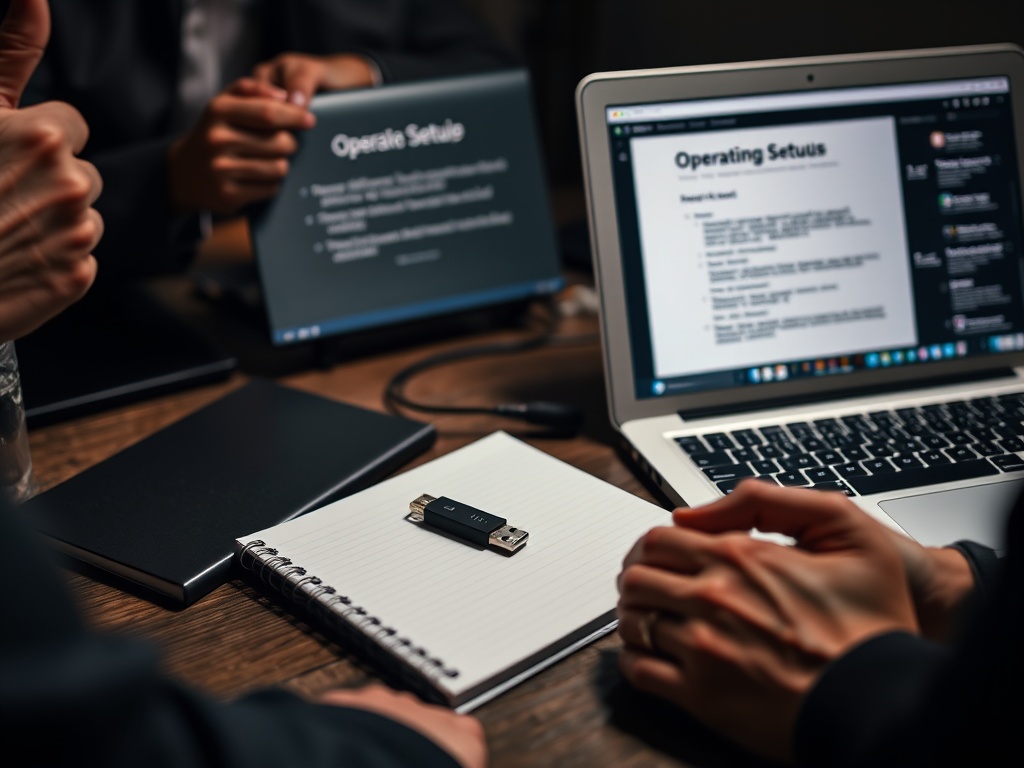
A live USB lets you boot Linux from a USB drive without fully installing it. This is useful for checking whether Wi-Fi, audio, screen brightness, keyboard, touchpad, printer, and external monitor support work on your machine. A virtual machine is another safe testing option if your current computer has enough resources.
Testing does not prove everything will be perfect, but it reduces surprises. During the test, open the browser, connect to Wi-Fi, play audio, try a video call if possible, open the file manager, and check whether your most important web apps work.
Install only after backups are complete
Before changing partitions or replacing an operating system, make a real backup. That means files you can restore, not just files you hope are synced somewhere. Put important documents, photos, downloads, browser bookmarks, license keys, and password manager recovery information somewhere safe.
Beginners often underestimate this step because Linux installers look friendly. A clear installer still changes storage. If you plan a dual-boot setup, where Linux and another operating system share the same computer, read the installer notes carefully and avoid rushing through partition screens.
The article on desktop buying mistakes is relevant here too because a desktop with a second drive can make testing and dual-boot experiments simpler than a sealed laptop with limited storage.
Learn the daily desktop first
Most beginner work can happen through the graphical desktop. Learn how to connect Wi-Fi, change display settings, install apps from the software center, update the system, manage files, and adjust power settings. Learn where downloaded files go and how external drives appear.
Once daily tasks are comfortable, learn a small set of terminal commands. Useful starters include pwd to show your current folder, ls to list files, cd to move between folders, cp to copy, mv to move or rename, and mkdir to create a folder. Do not paste long terminal commands from random pages unless you understand the purpose and trust the source. When learning commands, keep a small notes file with the command, what it does, and when you used it. That turns the terminal from a memorization test into a reference habit.
Keep software installation boring
Linux usually installs software through a package manager or software center. This is a strength. It keeps updates centralized and reduces the need to download random installers from the web. New users should prefer official repositories, verified app stores, and trusted project pages.
Different package formats can be confusing at first: deb, rpm, Flatpak, Snap, AppImage, and source builds. You do not need to master them immediately. Use the default software center first. When a needed app is missing, read the official installation instructions from the app developer or distribution.
Expect a few differences, not constant difficulty
Linux may name drives differently, place settings in different menus, and handle permissions more strictly. Some commercial apps may not be available natively. Gaming, specialty hardware, tax software, creative suites, and proprietary VPN clients may require extra research. Check these must-have tools before switching full time, especially if the computer is used for school, client work, or shared family tasks.
This does not mean Linux is too hard. It means you should move one workflow at a time. Start with browsing, email, documents, media, and files. Then add printers, cloud sync, development tools, games, or advanced customization.
For account safety while testing new software and services, pair this article with selecting and setting up a password manager and comparing SMS codes with authenticator apps.
A quick success checklist
By the end of week one, you should be able to update the system, install and remove an app, find downloaded files, connect to Wi-Fi, change display settings, open your main documents, use your password manager, and recover your backup. By the end of month one, you can add basic terminal comfort, printer setup, and a simple maintenance routine.
Your first confident Linux session
Set a low-pressure goal: boot Linux, connect to Wi-Fi, open a browser, install one app from the software center, change one setting, and shut down normally. That is a successful start. Build from there one habit at a time, and leave complex customization until your everyday workflow feels stable.