
Most mesh system problems are solved by checking placement, wired speed, firmware, node spacing, and device load before buying more hardware. Upgrade only after you know whether the issue is your internet service, the main router, the mesh backhaul, interference, or an outdated client device.
The mesh troubleshooting order
- Test internet speed with a wired connection at the main router first.
- Place mesh nodes where they can still hear the main router well.
- Update firmware and reboot in a controlled sequence.
- Separate coverage problems from speed, latency, and device-roaming problems.
- Upgrade the router or add wired backhaul before adding random extra nodes.
What a mesh system actually fixes
A mesh system uses multiple access points to extend Wi-Fi coverage across a home or small office. It can reduce dead zones and make roaming between rooms easier. The FCC notes that a Wi-Fi range extender or mesh routers can improve signal strength, while a direct Ethernet cable connection generally provides the highest speeds and can reduce congestion for devices that need it FCC home network tips.
That means mesh is mostly a coverage and convenience tool. It does not automatically increase the speed coming from your internet provider. It also cannot make an old phone, congested apartment building, or overloaded plan perform like a premium wired connection.
If you are still learning how web addresses and services fit together, understanding domains and URLs helps separate network access issues from website-specific problems.
Check the incoming connection first
Before changing mesh settings, connect a computer directly to the main router or gateway with Ethernet and run a speed test from a reliable service. Compare the result with your plan. If wired speed is far below what you pay for, the issue may be the modem, provider line, router, cable, or plan, not the mesh nodes.
Next, test Wi-Fi beside the main router. If speed is strong near the main router but weak in distant rooms, you likely have a coverage, node placement, or backhaul issue. If speed is weak everywhere, look at the main router, modem, provider, or interference close to the router.
This order prevents a common mistake: buying another mesh node when the real problem is the connection entering the home.
Fix placement before buying hardware
Mesh nodes need good communication with each other. If a node is placed inside the dead zone, it may repeat a weak signal. Place nodes halfway between the main router and the weak area, not at the farthest possible room. Avoid hiding nodes behind TVs, inside cabinets, near thick masonry, beside large appliances, or on the floor.
Wi-Fi signals are affected by walls, metal, water, mirrors, neighboring networks, and distance. A central elevated location usually works better than a corner. The FCC recommends central router placement for better home coverage FCC home network tips.
Understand wireless backhaul and wired backhaul
Backhaul is the connection between mesh nodes. In a wireless setup, nodes use Wi-Fi to talk to each other. In a wired setup, Ethernet carries that traffic. Wired backhaul is usually more stable and can free wireless capacity for your devices.
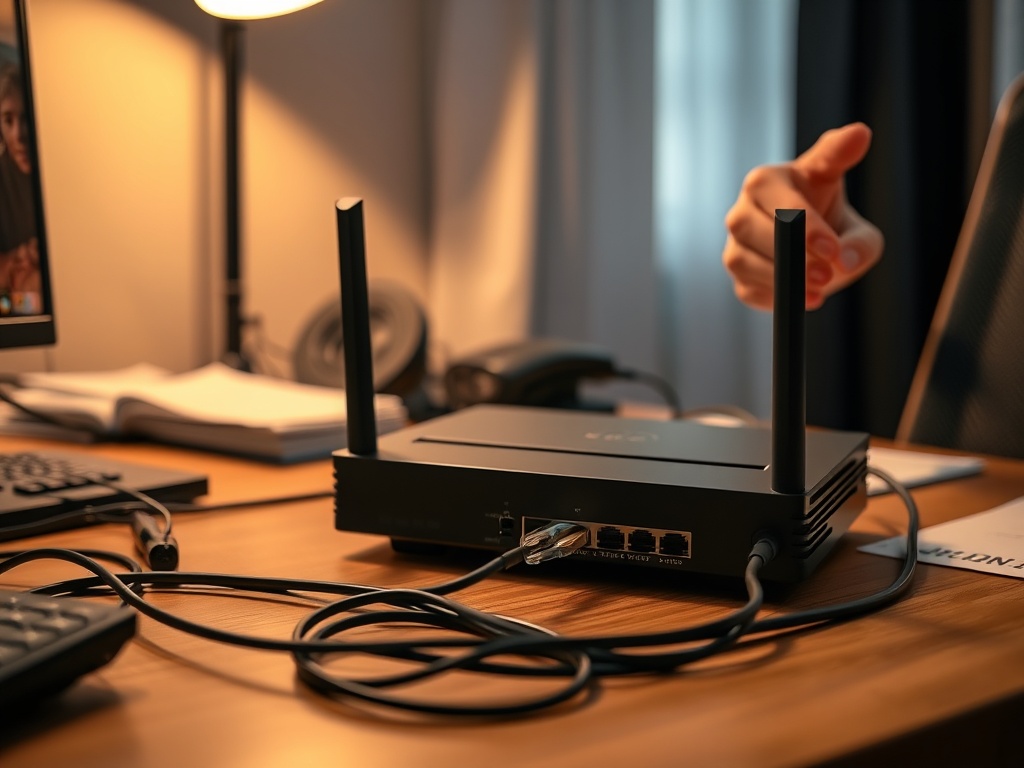
The Wi-Fi Alliance describes Wi-Fi EasyMesh networks as multiple access points that work together as a unified network and can adapt to changing conditions Wi-Fi Alliance on multi-AP networks. In practice, results still depend on hardware, placement, building layout, and device support.
| Problem | What it often means | What to try first | Upgrade only if |
|---|---|---|---|
| Dead zone in one room | Weak coverage | Move the nearest node closer to the main router | A better placed node still cannot cover the room |
| Fast near router, slow near node | Weak backhaul | Move node, reduce obstacles, try Ethernet | Wireless backhaul remains poor |
| Devices cling to far node | Roaming behavior | Reconnect device, update firmware, adjust node placement | The client device is old or mesh controls are limited |
| Video calls drop | Latency or congestion | Use Ethernet for work device, reduce load | Plan, router, or backhaul cannot support demand |
Review firmware and security settings
Mesh systems are small network computers. They need updates. Check the vendor app or admin panel for firmware updates, then reboot the modem, main router, and nodes in a clean order. Rebooting everything at once can hide the real cause of the problem.
CISA’s home Wi-Fi guidance emphasizes securing router settings because the home router can introduce privacy and cybersecurity risks if poorly configured CISA home Wi-Fi guidance. Use strong admin passwords, modern encryption such as WPA2 or WPA3 where supported, and a separate guest network for visitors and untrusted smart-home devices.
This connects with account security too. A good network setup should be paired with stronger sign-in habits, so the comparison of SMS codes and authenticator apps is a natural next read.
When adding nodes helps and when it hurts
Adding a node helps when there is a real coverage gap and the new node can be placed within a strong signal range. Adding too many nodes can hurt performance by increasing interference, confusing roaming, or pushing devices through inefficient paths.
A small apartment may need one strong router, not a mesh kit. A long house, thick walls, detached office, or multiple floors may benefit from mesh. A home with Ethernet wiring may perform better with wired access points or wired mesh backhaul than with fully wireless nodes.
Device limits and old client hardware
Sometimes the mesh system is fine and the device is the problem. Older laptops, phones, streaming sticks, printers, and smart-home devices may support older Wi-Fi standards, weaker antennas, or only one frequency band. Printers and smart devices can also struggle with band steering or combined network names.
Before replacing the mesh system, test with two or three devices. If only one device struggles, update or reset that device. If all devices struggle in one area, focus on placement or coverage. If all devices struggle everywhere, focus on the main router or internet connection.
Your practical upgrade path
Upgrade in this order: better placement, firmware, wired test, wired backhaul if possible, then a stronger main router or mesh kit. Add nodes only when coverage mapping shows a specific gap. If your desktop is part of the problem, the guide to desktop buying mistakes can help you decide whether wired Ethernet, a better Wi-Fi adapter, or a newer computer is the smarter fix.
A cleaner home network from here
Do not let a mesh app’s signal bars make every decision for you. Test one variable at a time, write down the room, device, speed, and problem, and upgrade only after the pattern is clear. A good mesh system should make the network boring: stable calls, predictable speeds, and fewer rooms where people complain.