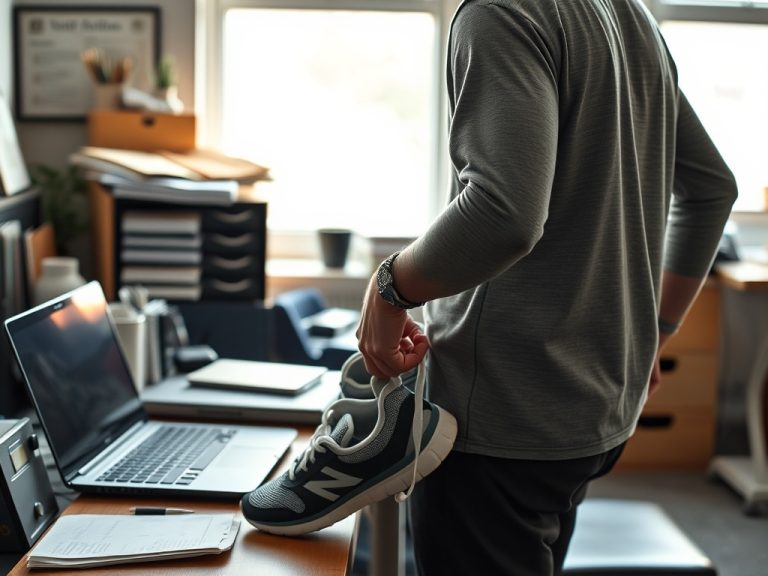
Neck and shoulder tension during desk work is often better addressed by changing the workstation and the work pattern together. Aim for a comfortable neutral setup, keep frequently used items close, and interrupt long static periods instead of searching for one perfect posture.
Desk Setup Snapshot
- Adjust the screen, chair, keyboard, and mouse so you are not repeatedly reaching, twisting, or craning forward.
- Change position and take brief movement breaks; even a neutral posture can become uncomfortable when held too long.
- Persistent pain, weakness, numbness, or symptoms after injury deserve clinical assessment rather than endless desk tweaks.
Compare posture correction with workstation correction
Telling yourself to "sit up straight" is not a complete ergonomic strategy. If the monitor is too low, the mouse is too far away, or the chair does not support your body, you will keep returning to awkward positions no matter how often you correct yourself.
The OSHA computer-workstation eTool recommends arranging the workstation around neutral body positions and notes that no single setup fits everyone. That makes equipment adjustment the first comparison to understand: a posture cue changes what you do for a moment, while a workstation change can reduce the need for the awkward posture in the first place.
For people who also train on busy days, a 30-minute strength session can complement general fitness, but exercise should not be used to excuse an uncomfortable workstation.
Set the monitor to reduce repeated neck movement
Place the primary screen directly in front of you rather than off to one side. OSHA's good working-position guidance describes the head as level, forward-facing, and generally aligned with the torso. The monitor should be high enough that you do not spend the day dropping your chin or lifting it to see the screen.
If you use a laptop for long periods, the fixed relationship between screen and keyboard can make an ideal setup difficult. A separate keyboard and mouse plus a laptop stand or external monitor can give you more flexibility. The exact height depends on your body, vision, and eyewear, so adjust for comfort rather than copying a single measurement from a diagram.
Bring the keyboard and mouse into your reach zone
A mouse placed far to the side can keep the shoulder slightly abducted for hours. Move the mouse close to the keyboard and keep both on the same working surface when possible. Your elbows should stay relatively close to the body, with forearms supported as appropriate.
A useful comparison is equipment position versus equipment type. Many people buy an ergonomic mouse before checking whether the existing mouse is simply too far away. Changing the device may help some users, but location, reach, and work habits still matter.
Keep frequently used objects such as a phone, notebook, or reference document within an easy reach. Items used rarely can sit farther away.

Compare chair support with active movement
A supportive chair can reduce unnecessary effort, but no chair eliminates the cost of staying still all day. NIOSH's current office-environment guidance advises against sitting or standing too long and notes that short breaks can reduce discomfort for computer users.
Use the chair to support you, then change position periodically. That may mean standing for a short task, walking to refill water, taking a brief movement break between meetings, or shifting how you sit. A sit-stand desk is one option, not a requirement. Standing motionless for hours can become uncomfortable too.
If you want more deliberate activity around the desk day, a weekly cardio schedule for office work addresses conditioning separately from ergonomics.
| Intervention | Most useful when | What it cannot solve |
|---|---|---|
| Monitor position | You crane or rotate the neck to see the main screen | Cannot solve discomfort caused by long static work on its own |
| Chair and foot support | You feel unsupported or cannot rest the feet comfortably | Does not remove the need to change position |
| Keyboard and mouse placement | You repeatedly reach or hold a shoulder away from the body | A new device will not help if it is still placed too far away |
| Sit-stand option | You benefit from changing work position | Standing all day can become another static posture |
| Micro-breaks | Repetition and long uninterrupted computer periods are the main issue | Do not replace evaluation of persistent neurological or injury-related symptoms |
Use micro-breaks as task design, not exercise punishment
A break does not need to be a mini workout. The purpose is to interrupt repetition and static loading. Stand, roll the shoulders gently, look away from the screen, walk for a minute, or switch to a different task. The best break is one you can actually repeat.
Attach breaks to transitions: after a video call, before opening the next project, when a timer ends, or after finishing a document section. This turns movement into part of workflow design rather than another task competing for attention.
Do not force painful stretches. Gentle motion may feel good, but pain that increases with movement, radiates into an arm, or comes with numbness or weakness needs more than a generic break routine.
Compare quick fixes before buying new equipment
Before purchasing a new chair or desk, test lower-cost changes:
- Move the monitor directly in front of you.
- Raise or lower the screen to a comfortable viewing position.
- Bring the mouse closer.
- Support the feet if they do not rest comfortably.
- Remove clutter that pushes the keyboard away.
- Change task position several times during the day.
If those changes help, you have identified useful design variables. If they do not, then a new chair, keyboard, monitor arm, or sit-stand desk can be evaluated based on the specific problem it needs to solve.
Avoid turning ergonomics into a rigid posture rule
The phrase "perfect posture" can make people afraid to move. Ergonomics is better understood as matching the work environment to the worker and reducing unnecessary stressors. NIOSH describes awkward and static postures as risk factors, which supports variety rather than one frozen position.
Another common mistake is doing an elaborate mobility routine while leaving the workstation unchanged. Mobility can be useful, but if the workday repeatedly recreates the same strain, the source still needs attention.
A third mistake is assuming all neck or shoulder symptoms come from the desk. Training load, sleep, stress, previous injury, and medical conditions can also contribute. Avoid self-diagnosing the cause from one article.
Use comfort and function as the final comparison
A setup is improving when you can work without repeatedly reaching, craning, shrugging, or changing position because of discomfort. Give each adjustment a few workdays before changing everything again. Small changes are easier to evaluate than a complete workstation overhaul.
If you are trying to fit these changes around a demanding schedule, a realistic full-time-job workout plan can help keep movement and workstation habits from becoming one giant productivity routine.
Take one photo of the workstation from the side if that helps you remember the baseline, then make one or two changes rather than buying everything at once. Comfort after several normal workdays is a more useful signal than how "ergonomic" the setup looks in a single moment.
Seek medical or physical-therapy guidance if symptoms are persistent, worsening, associated with weakness or numbness, follow a significant injury, or interfere with normal activity. Otherwise, start by moving the screen and mouse into better positions and scheduling two brief movement transitions into tomorrow's workday.